How to track office days on iPhone Duo.
Short answer
OfficeComply supports iPhone Duo in every pose. Closed, the 5.4-inch outer display shows today’s office-day status at a glance. Open, the 7.6-inch inner display gives Today, Plan, Insights and Settings a roomier, readable layout. Unfolding or folding keeps your place, and office days can log themselves when you arrive at work.
iPhone Duo is Apple’s foldable iPhone: a small outer display when closed and a larger inner display when open. If your employer has a return-to-office rule, such as three days a week, a monthly count, or a percentage of working days, OfficeComply works the same way on iPhone Duo as on any iPhone, with layouts made for both screens.
Set it up on iPhone Duo
Install OfficeComply and set your rule
Download OfficeComply from the App Store and choose the rule your employer uses: office days per week, per month, or a percentage of working days. The Today ring then shows how many days you have done and how many are left.
Log today, or turn on auto-logging
On the Free tier you can log today with one tap. OfficeComply Pro adds automatic logging when you arrive at the office, history, planning and alerts.
Use whichever display suits the moment
You do not need to change anything for iPhone Duo. The app adapts to the outer or inner display on its own, in portrait or landscape.
OfficeComply is free to download and runs on iPhone Duo. Get OfficeComply on the App Store
Closed: check today on the outer display
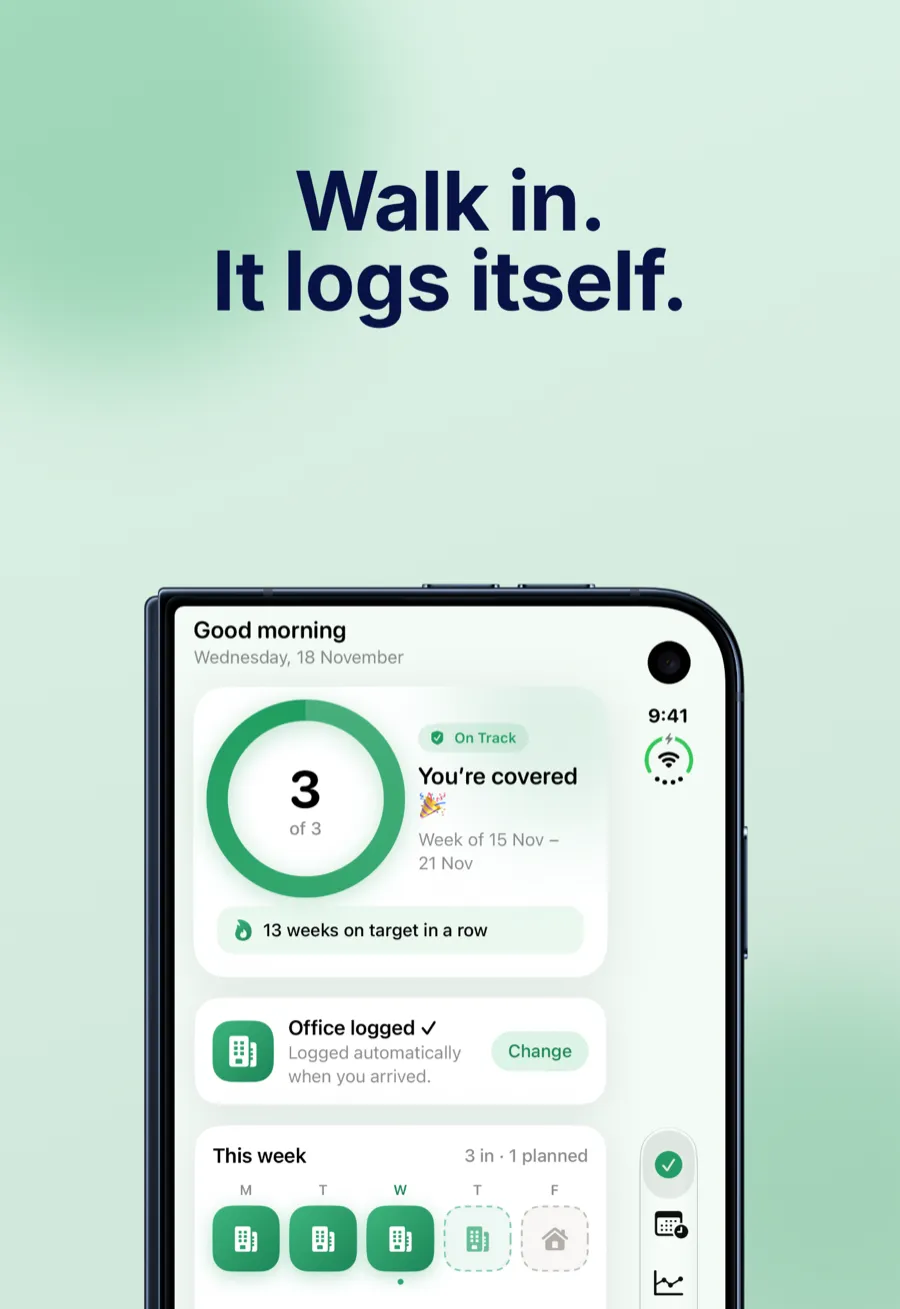
With iPhone Duo closed, OfficeComply uses the 5.4-inch outer display. The Today screen shows your ring, whether you are on track this week, and whether today is logged, with a side rail for moving between Today, Plan, Insights and Settings.
This is the quickest way to answer “am I covered this week?” without opening the phone.
Half open: the app follows the active display
When iPhone Duo is half open, iOS decides which display is lit, and OfficeComply lays itself out for that display’s size. Nothing is cut off, and you can keep using the app while you change pose.
Open: plan and review on the inner display
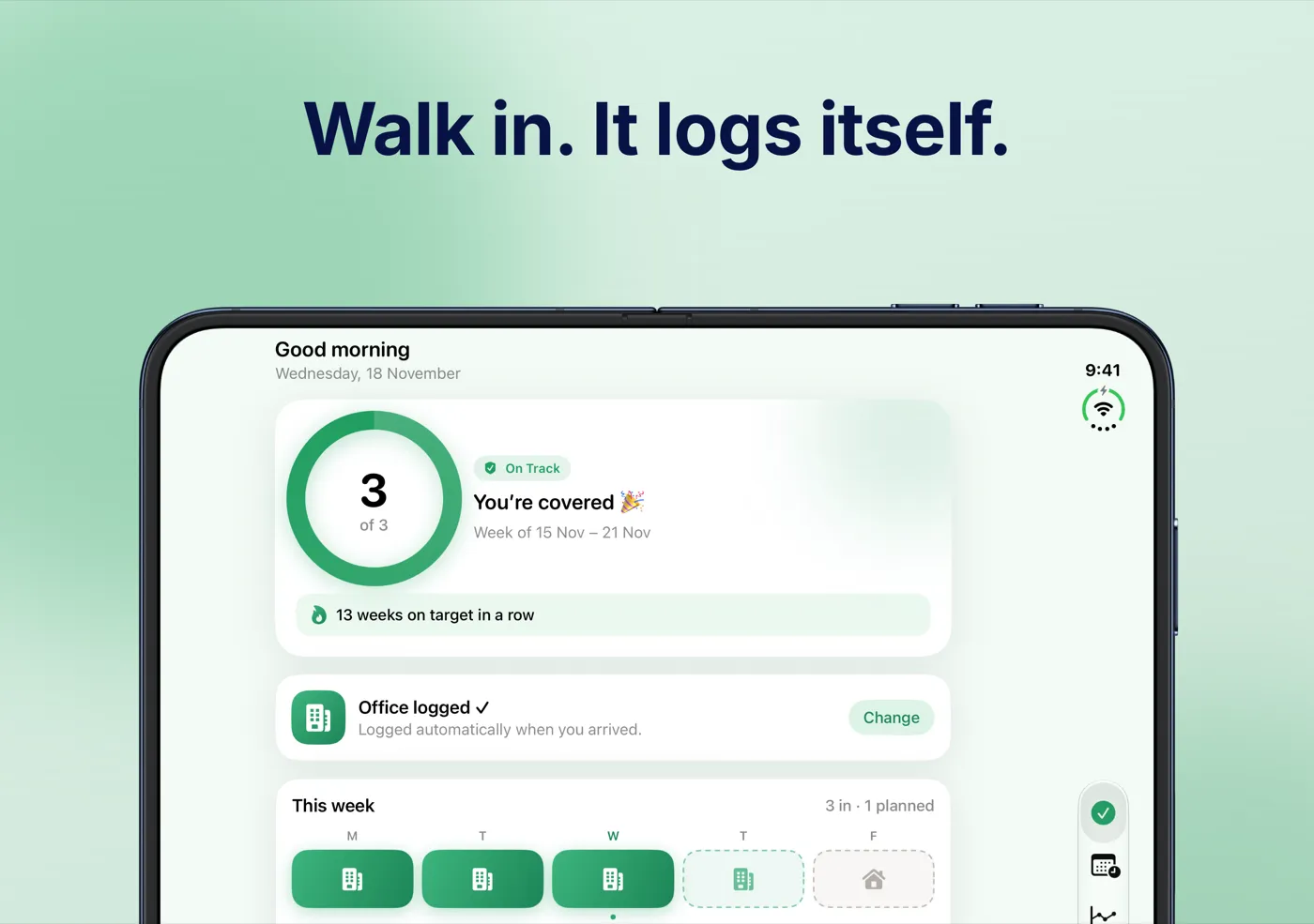
Open, the 7.6-inch inner display gives Today, Plan, Insights and Settings more room. Content keeps a readable width instead of stretching edge to edge, so the week view, plans and charts stay easy to scan.
Folding or unfolding keeps your place. If you were planning next week on the inner display, you are still on the same screen after you close it.
Automatic office-day logging on iPhone Duo
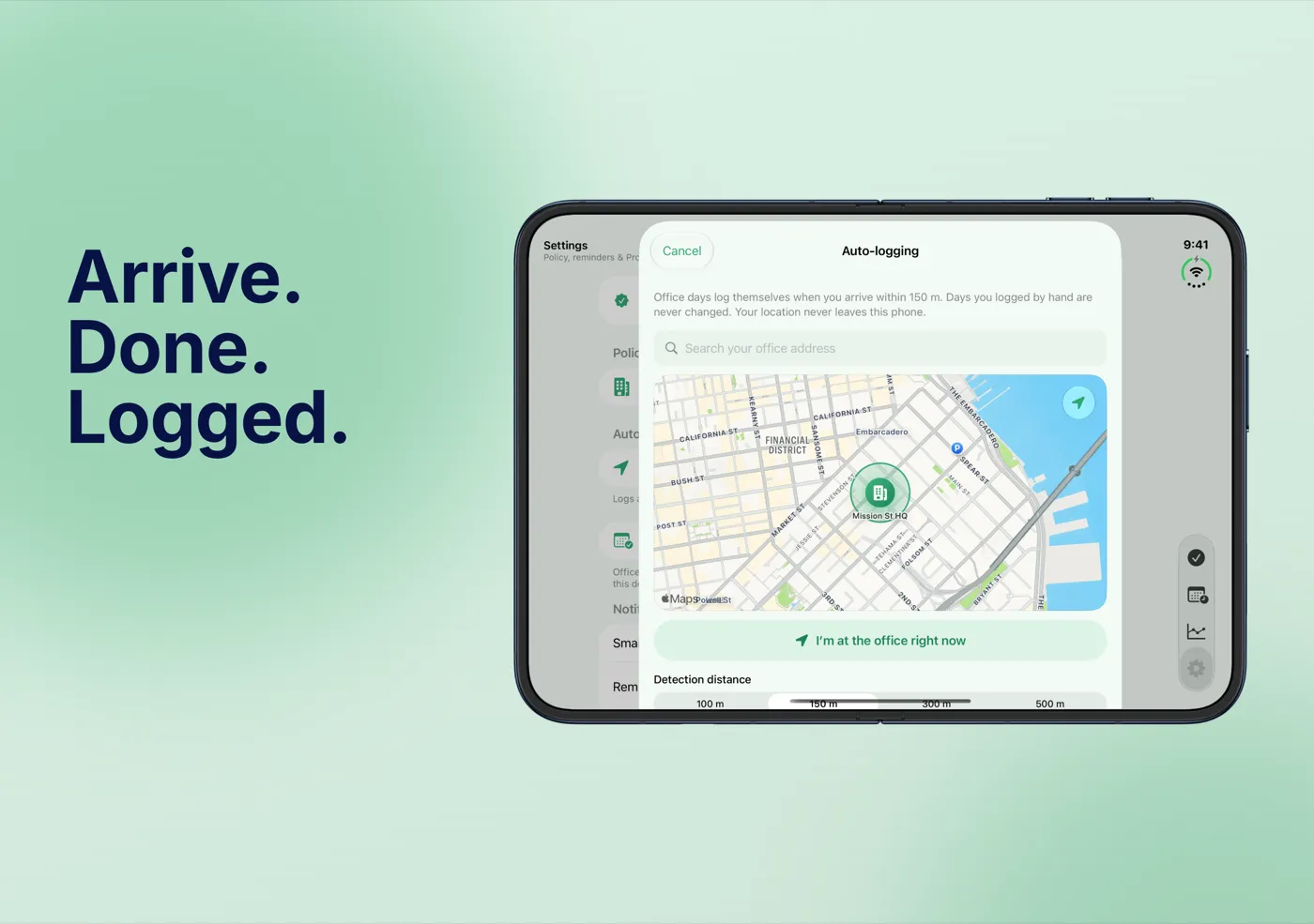
With OfficeComply Pro, pin your office once and office days log themselves when you arrive. The auto-logging setup screen, including its map, fits on both the inner display and the shorter outer display.
OfficeComply 1.4.1 makes automatic logging more careful. A drive-by that lasts under 15 minutes is undone. If you planned an office day and nothing was logged, an evening check-in asks you about it. A backup visit detection catches arrivals that were missed. You can undo an automatic log from the notification, and every day shows how it was logged: automatically, by hand, or with Siri.
Your location is used on the phone only and never leaves it.
Automatic logging is part of OfficeComply Pro. Get OfficeComply on the App Store
Tips for reliable tracking
A few settings make the biggest difference to automatic logging, on iPhone Duo or any other iPhone.
- Set the detection distance to fit your office. You can choose from 100 m to 500 m. A larger distance helps on big campuses or when GPS drifts in dense city centres; a smaller one avoids logging nearby stops.
- Check the auto-logging status screen. It lists anything that is stopping automatic logging, such as location access that is not set to Always.
- Pin the entrance you actually use, not the middle of the building.
- Plan your office days. Planned days that end up unlogged trigger the evening check-in, so nothing slips through.
The takeaway
iPhone Duo does not change how you track office days, only where you look. Glance at the outer display to see if you are on track, open it when you want to plan or review, and let auto-logging record the days you go in.
Get OfficeComply on the App StoreFrequently asked questions
- Does OfficeComply work on iPhone Duo?
- Yes. OfficeComply 1.4.1 and later supports iPhone Duo on the outer display when closed, on the inner display when open, and when half open.
- Do I lose my place when I fold or unfold iPhone Duo?
- No. OfficeComply keeps the screen you were on when you fold or unfold the phone.
- Does automatic office logging work on iPhone Duo?
- Yes. Automatic logging is part of OfficeComply Pro and works the same as on other iPhones. Location is processed on the phone and never leaves it.
- Is OfficeComply free on iPhone Duo?
- The Free tier lets you log today and see your progress. Pro adds automatic logging, history, planning and alerts.
This guide is general information, not legal, employment, or HR advice. Your employer’s written policy and official records always take precedence.